PSA Concerning Fake Cloudflare Verification
This fake Cloudflare verification ruse is VERY important to be aware of, as it is affecting legitimate sites which have been compromised. Of late many of these are WordPress-run sites via malware-infested themes and plugins — most if not all would be the low-hanging-fruit ‘free’ ones*. (WordPress is flat-out banned on our server because of its security risks.)
* There is a saying in IT: when something is free then you are the product.
The site owners are likely to be oblivious to their site having been infected, and may appreciate this being drawn to their attention.
I’d known of this fake verification for a while, but had never seen it until very recently, when following a link in a newsletter I’ve been subscribed to since forever. And yes, the link was to a WordPress site.
So what IS this fake Cloudflare verification?
Many people may have seen many times the legitimate Cloudflare verification pages pop up prior to visiting a website. Their role is to protect that website from attacks and excessive bot traffic. It is usually passive, in that you don’t do anything but wait a second or two before the main site loads:
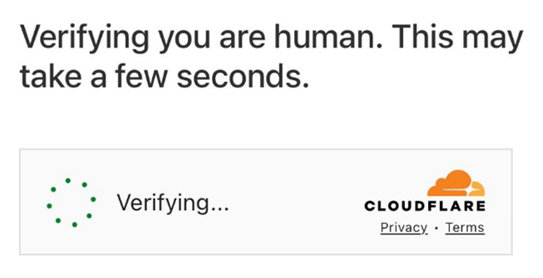
On clicking that newletter link however, I saw this:
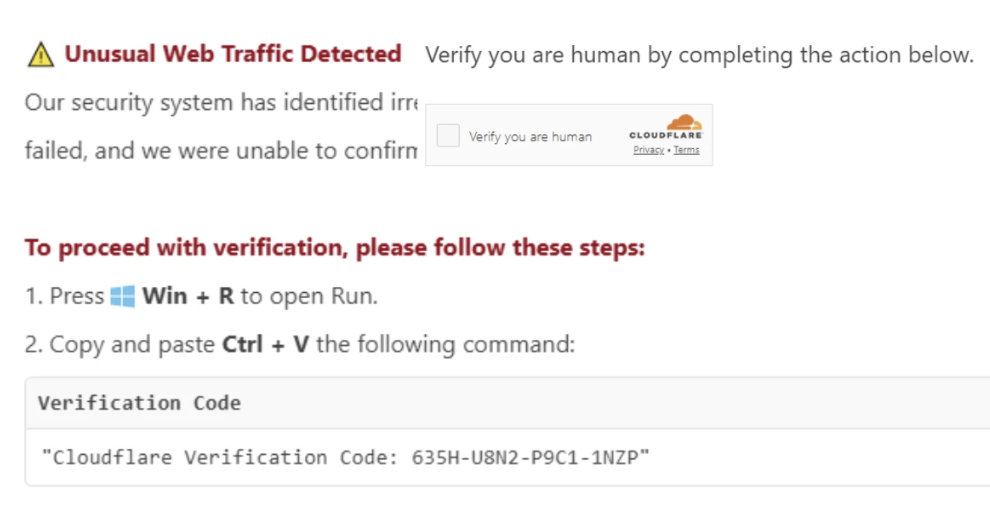
The immediate red flag was that this wasn’t passive, it was active, requiring you to do something — to tick that “Verify you are human” box.
The second red flag was the over-the-top set of instructions to follow — what?!
What is going on here?
By ticking that box — and so many people would be so used to ticking these things that they probably do it without even thinking — a whole bunch of nasty code was immediately saved to the computer’s clipboard.
But this isn’t the worst part. That comes should you follow those instructions. Those instructions are the means by which the copied code is made to run on your computer!
What to do?
If you so much as see anything remotely resembling those instructions on any web page, leave the page immediately and notify the site owner as the decent thing to do.
If you did tick the “Verify” box only, all is not lost.
- First close that page
- Next open up something into which you can type text — Notepad or other text editor, Word or other word processor doc, or even a blank email composition window
- Type any old word or even random gibberish — “asrglesr't tyiwtiywj” was my attempt just then!
- This is the important part: copy whatever you just typed. This replaces the nasty code you inadvertently copied to your clipboard earlier
- for good measure, now paste that code back. This is your visual confirmation that there is nothing malicious still on your clipboard
- Notify the site owner and, if it makes you feel better, run any virus-scanning software you may have, though please note that it may not detect this
If you both ticked the “Verify” box and ran the code, I’m truly sorry but your computer is now compromised. Please seek help to remove that malicious software — but please be warned. Many computer repair types will remove the code all right, by wiping your entire disk before reinstalling the operating system. All your data, your emails, photos, all gone if not backed up first. Do not agree to anything until you are absolutely sure that all your data are safe.